How to use Speech Relay

Set up words, folders, and cells with a few calm steps.

A simple guide for parents and caregivers learning how to use and customize the board.

Quick setup

Start small, then shape the board around daily routines.

Speech Relay works best when the first board is simple. Begin with familiar words, group related choices into folders, and customize cells slowly as the child or caregiver discovers what is useful.

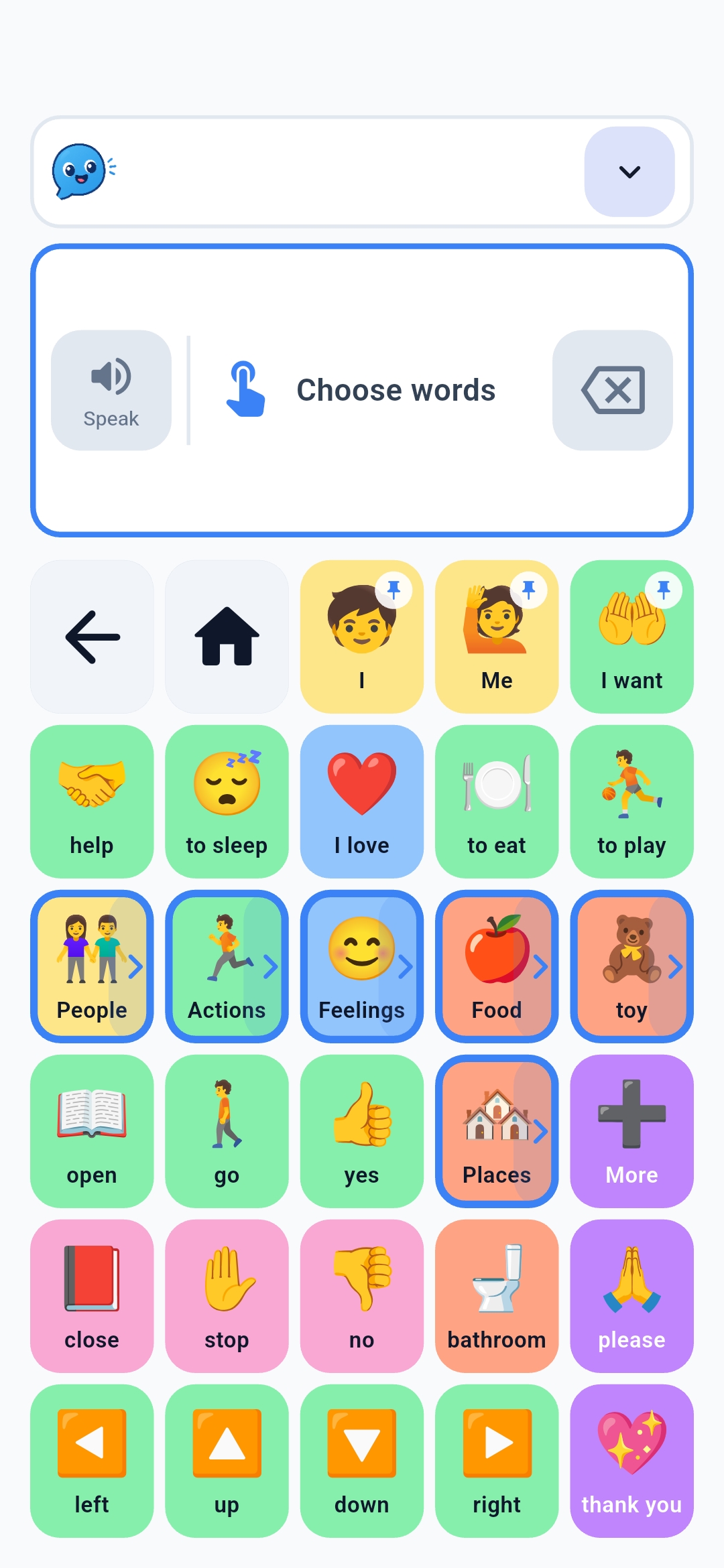
Speech Relay main word board with categories and common words.

Guide

Start with the board

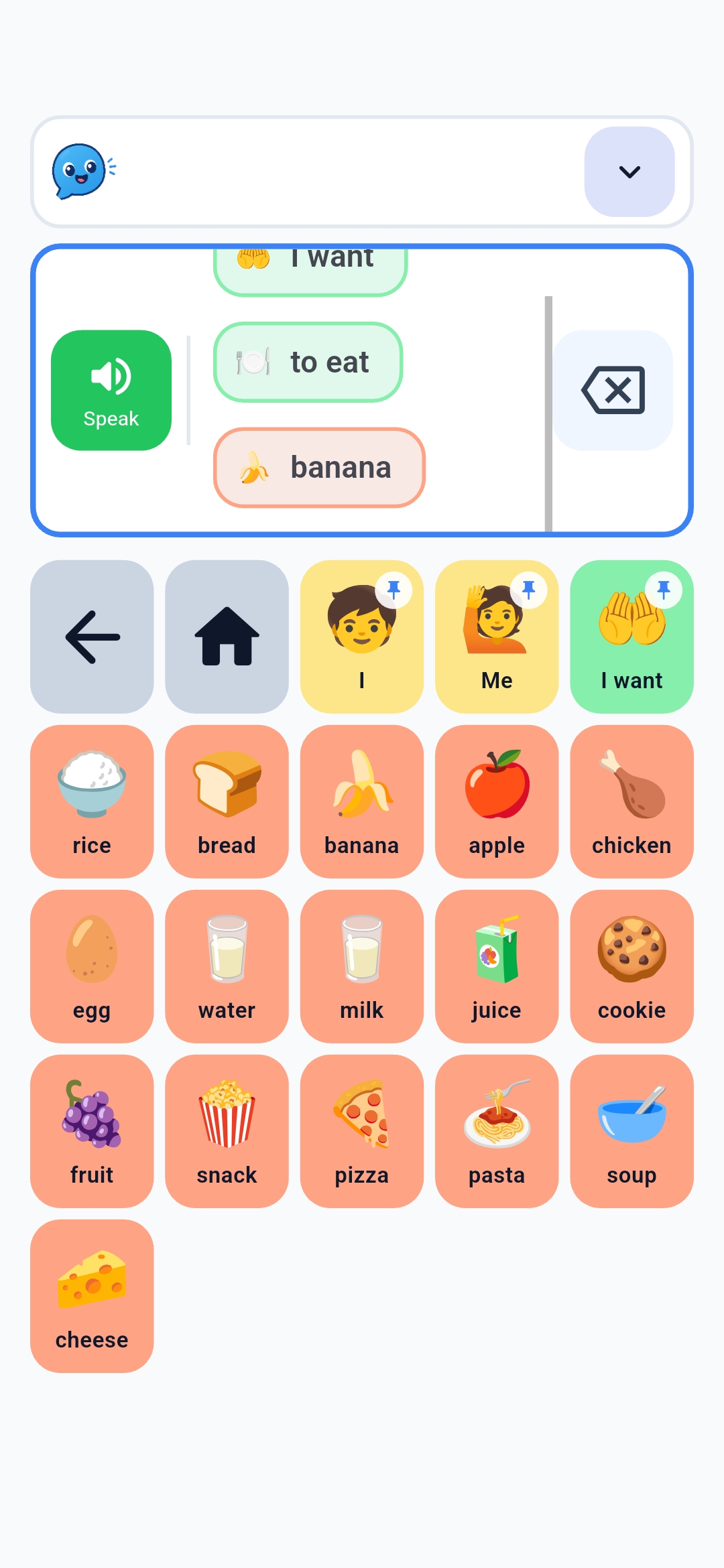
  1. Tap a word to add it to the message strip.
  2. Add more words to build a short sentence.
  3. Tap to speak when the sentence is ready.
  4. Use undo or clear when you want to change the sentence.

Speech Relay food vocabulary board with related words grouped together.

Guide

Create a folder

  1. Open the board area you want to organize.
  2. Choose a cell that should become a folder or category.
  3. Give the folder a short, familiar name like Food, People, or School.
  4. Add related words inside the folder so choices stay easy to find.
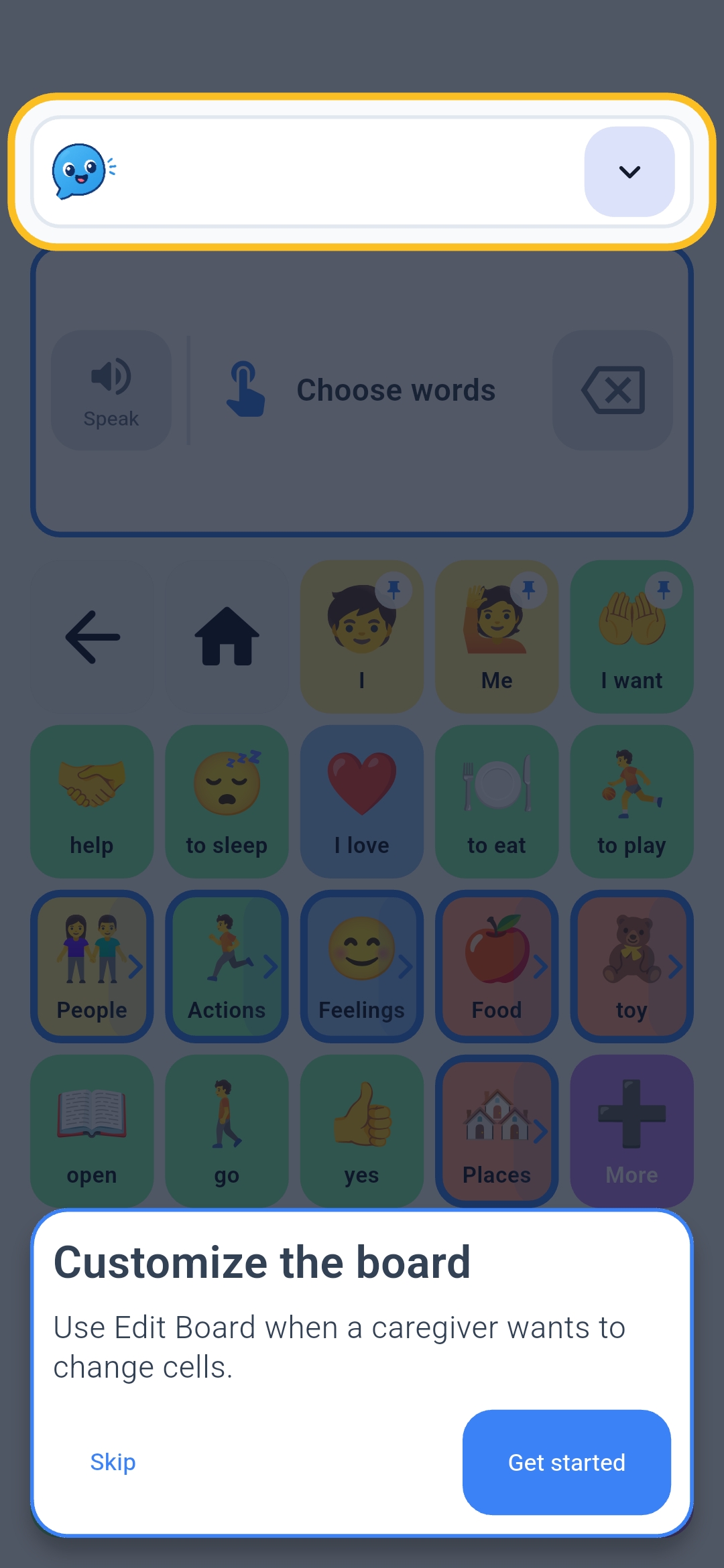
Speech Relay onboarding screen explaining board customization.

Guide

Open customization

  1. Open the customization tools when you are ready to adjust the board.
  2. Review the current folders and cells before changing them.
  3. Choose one area to improve instead of changing the whole board at once.
  4. Save changes, then return to the board and try them in daily use.
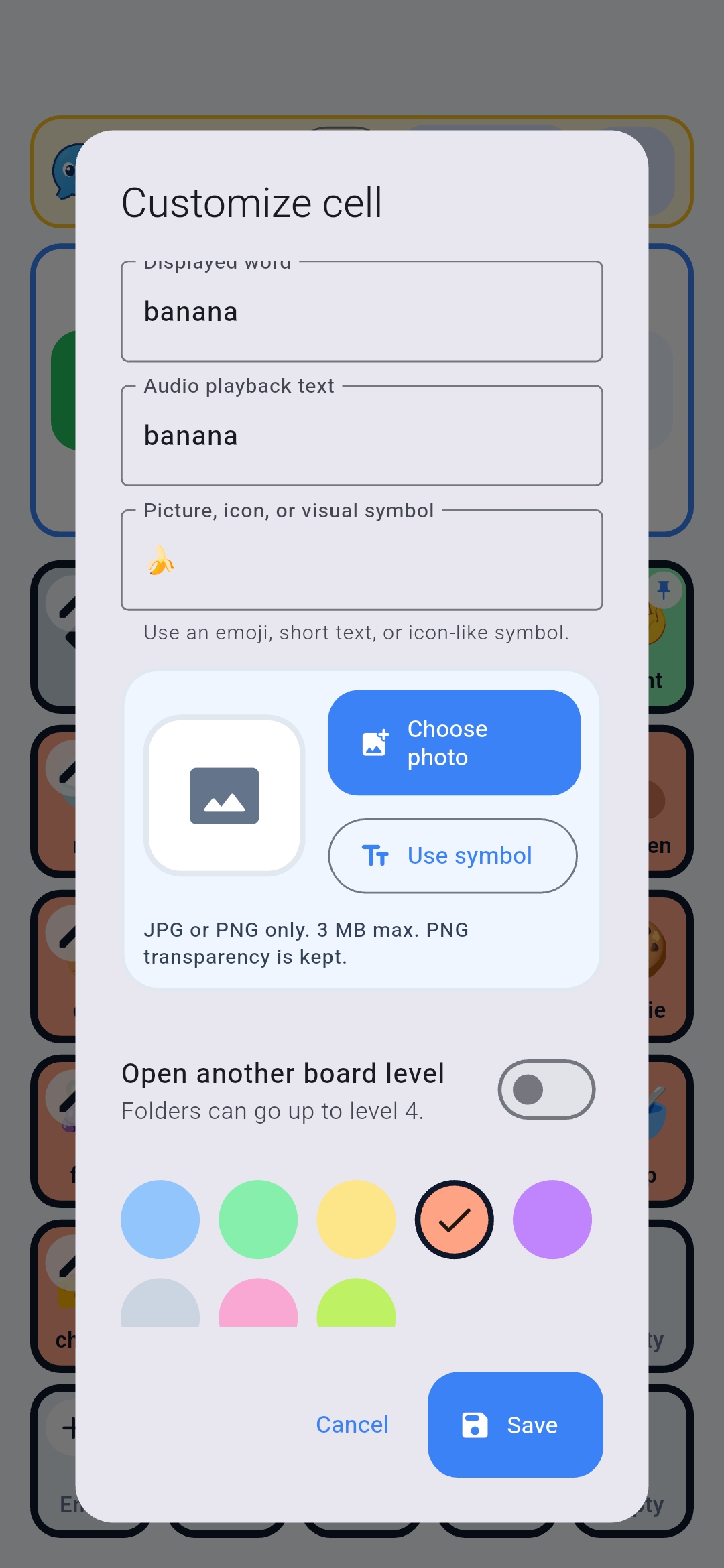
Speech Relay customize cell screen for editing a word and image.

Guide

Customize a cell

  1. Choose the cell you want to change.
  2. Edit the label shown on the board.
  3. Set the spoken text if it should say something different from the label.
  4. Choose a color or photo that makes the word easier to recognize.

Helpful caregiver tips

Keep each change easy to recognize.